Virtual environments
Package managers typically maintain a database of software dependencies and version information to prevent software mismatches and missing prerequisites. When package versions collide, this can lead to problems ranging from error messages and frustration to silent bugs and unexpected code behavior !
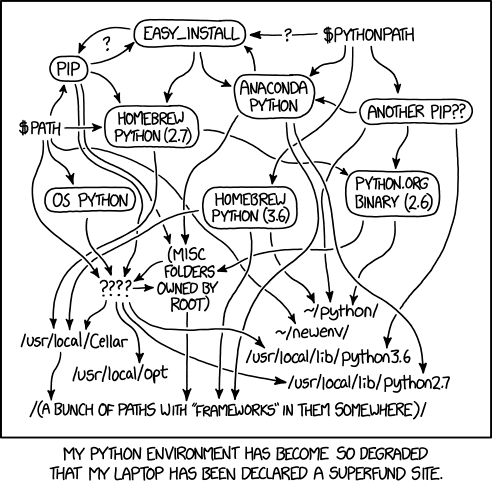
What can happen with badly managed packages. You will want to burn your computer at some point… (From Xkcd: virtual environment)
Why can’t I just install the packages I need ?
Instead of installing everything globally and risking conflicts, virtual environments give you separate spaces for each project. This means no more worrying about messing up your setup! Plus, package managers make installing, updating, and removing packages a breeze, saving you time and hassle. You can easily share your projects with classmates and reproduce your work on any machine.
This is a very brief introduction to virtual environments and package managers. For more details, please see the documentation of the package manager you use.
Benefits
Here are some examples of why using virtual environments and package managers can be incredibly useful for scientific computing:
Project Isolation: Let’s say you’re working on two different projects—one in R and another in Python. Each project requires different versions of certain packages. By using virtual environments, you can create separate environments for each project, ensuring that the specific package versions needed for each don’t interfere with one another.
Reproducibility: With virtual environments, you can easily share your projects with classmates or professors, ensuring that they can replicate your exact setup without any compatibility issues. This enhances the reproducibility of your work and allows others to verify your results.
Dependency Management: Sometimes, a package may rely on a specific version of another package to work correctly. Package managers handle these dependencies automatically, saving you the headache of figuring out and managing dependencies manually.
Experimentation: Working on a new statistical model and want to test different libraries or versions? With virtual environments, you can create a sandbox to experiment freely without worrying about affecting your main setup.
Collaboration: When collaborating with classmates or researchers, having consistent environments through virtual environments ensures that everyone is on the same page. It prevents conflicts arising from different package versions and improves overall productivity.
System Cleanliness: Installing packages globally can clutter your system, making it difficult to manage and potentially leading to conflicts between different software. Virtual environments keep your system clean and organized.
Version Control: Using virtual environments makes it easier to integrate your projects with version control systems like Git. You can include the configuration files for your virtual environment in the repository, making it simpler for others to work on the project.
Efficient Updates: Package managers allow you to update packages quickly and efficiently. You can easily check for updates, install the latest versions, and keep your project up-to-date with the latest features and bug fixes.
By embracing virtual environments and package managers, you’ll have a smoother, more organized, and productive workflow, making your research and analysis process much more enjoyable and effective.
Downsides
You will have to run a few commands everytime you start a new project. This is a small price to pay for the benefits you get. (You may also need to activate the virtual environment everytime you start a new shell session, but this can be automated).
How ?
renv for R package management, venv, conda or others for Python package management. Julia has this feature built in using Pkg.
- Creating a virtual environment
In terminal
python3.6 -m venv my_env
source my_env/bin/activate
In Julia repl
using Pkg
Pkg.activate("my_env")
In R console
renv::init()- Adding packages to the virtual environment (already activated)
In terminal
pip install numpyIn Julia repl
Pkg.add(Plots)In R console
renv::install("tidyverse")- Recreating the virtual environment from a file (after creating the environment)
In terminal
pip install -r requirements.txtIn Julia repl
Pkg.instantiate()In R console
renv::restore()Python is the only one that has a specific command to create a file with the list of packages.
pip freeze > requirements.txtFor R and Julia, the file is created automatically when you add a package to the environment and updates automatically when you add or remove packages. (For Renv you may need to run renv::snapshot() to update the file sometimes).
For more details on the commands or the OS specificity please see the documentation of the package manager you are using:
renvrenvwignetJuliaJulia pkgPythonPython venv and pip, conda
Step by step tutorial
Python Virtual Environments (venv):
Virtual environments in Python enable you to create isolated environments for each project. Here’s how to use venv:
Open your terminal or command prompt.
Navigate to your project’s directory.
Create a new virtual environment:
python -m venv my_project_envActivate the virtual environment:
- On Windows:
my_project_env\Scripts\activate- On macOS/Linux:
source my_project_env/bin/activateInstall packages within the virtual environment:
pip install package_nameDeactivate the virtual environment when you’re done:
deactivate
Julia Package Manager (Pkg):
Julia’s Pkg allows you to manage and install packages effortlessly. Here’s how to use Pkg:
Open the Julia REPL (Read-Eval-Print Loop).
To enter package management mode, type
].Create a new environment and activate it:
activate my_project_envInstall packages within the environment:
add package_nameUpdate packages:
updateTo exit package management mode, press
Ctrl + Cor typeexit().
R Package Manager (renv):
In R, renv provides a similar functionality to Python’s venv and Julia’s Pkg. Here’s how to use renv:
Open your R console or RStudio.
Install the renv package (if not already installed):
install.packages("renv")Initialize renv for your project:
renv::init()Install packages within the renv environment:
install.packages("package_name")Restore the project’s environment to remove any packages that aren’t listed in the lockfile:
renv::restore()or update the lockfile to include any new packages:
renv::snapshot()Deactivate the renv environment (optional):
renv::deactivate()
Summary
| initialization | activate | deactivate | add package | |
|---|---|---|---|---|
renv |
renv::init() |
renv:activate() |
renv::deactivate() |
renv::install() |
venv |
python -m venv {name} |
source {name}/bin/activate |
deactivate |
pip install ... |
Julia |
] activate {name} |
] activate {name} |
] activate |
] add ... |
| files to share | to recreate | |
|---|---|---|
R and renv |
renv.lock |
renv::restore() |
Python and venv |
requirements.txt |
pip install -r requirements.txt |
Julia |
Project.toml |
] instantiate |